View KML and KMZ Data on an Interactive Map
KML (Keyhole Markup Language) was originally created for a 3D earth visualisation product called Keyhole Earth Viewer. When Google acquired Keyhole Inc. in 2004 and relaunched the product as Google Earth, KML became the de-facto interchange format for geographic data across the entire Google ecosystem. Today virtually every mapping tool that connects to Google Earth or Google Maps can export KML — from saved projects and My Maps exports to GPS devices, drone flight planners, field survey apps, and government open data portals. If someone has sent you a .kml or .kmz file, they want you to see a map.
The traditional barrier was that viewing KML properly required Google Earth Desktop — a large application to install just to inspect a file. This free browser-based viewer removes that friction entirely. Upload any .kml or .kmz file and all its geometry — points, lines, and polygons — renders instantly on an interactive Leaflet map. KMZ archives are decompressed automatically inside the browser; nothing is ever uploaded to a server. You can change feature colours, switch basemaps, click any feature to inspect its stored attributes, and export the entire dataset as GeoJSON with one click.
Key Features of the KML / KMZ Viewer
- KML & KMZ Support — upload .kml plain text files or .kmz compressed archives
- Interactive Map — all geometries rendered via Leaflet with auto-zoom to data extent
- Colour Picker — change the colour of all map features with a single click
- Hover Highlight — features highlight in amber when hovered
- Feature Popup — click any feature to see its name, description, and stored attributes
- Basemap Switcher — Street, Satellite (Esri), and Terrain map styles with automatic fallback
- Export as GeoJSON — download the loaded KML as a .geojson file
- Drag & Drop — drag a file directly onto the map to load it
- Fullscreen Mode — expand the map to fill the entire viewport
- 100% Client-Side — your file never leaves your device
How to View KML / KMZ Data on Map — Step by Step
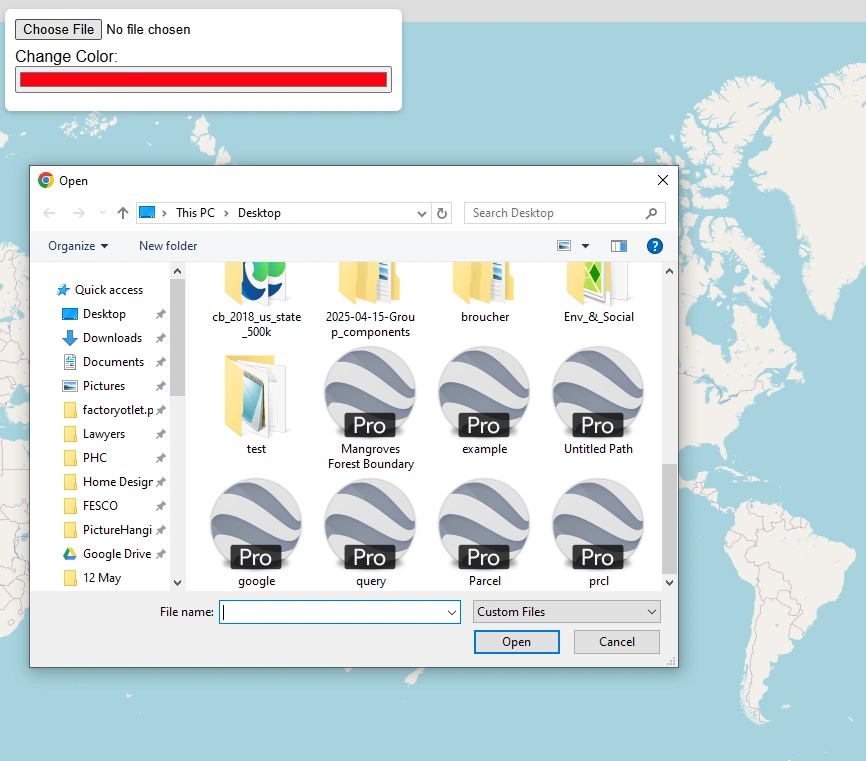
Click the "Upload KML / KMZ" button. A file browser will open — browse to your file location, select it, and press Open. The file loads automatically.
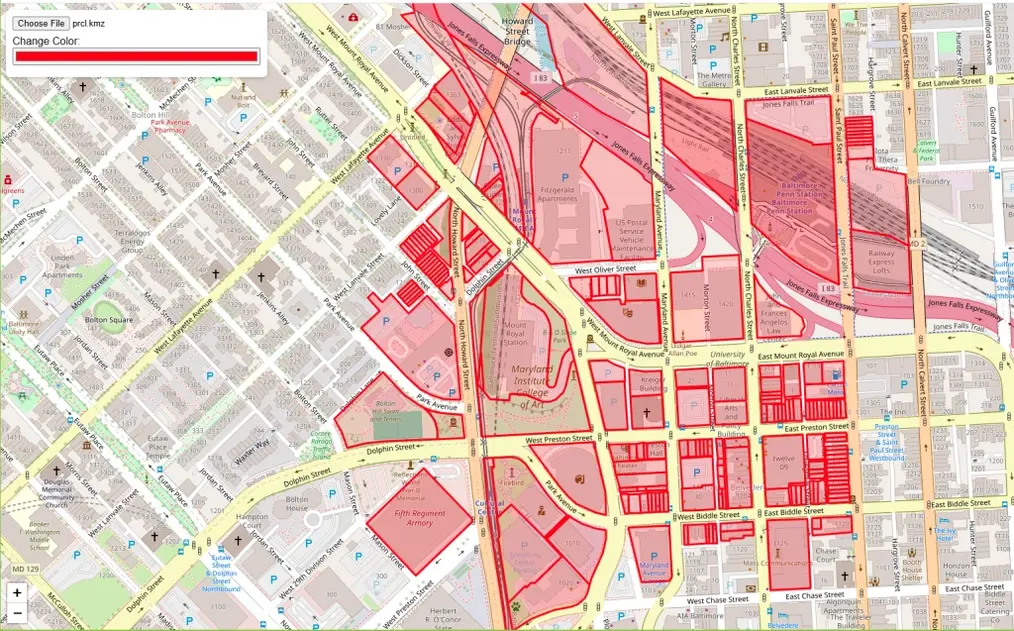
After uploading, the map zooms to fit all features. Points, lines, and polygons are all rendered with the default red colour.
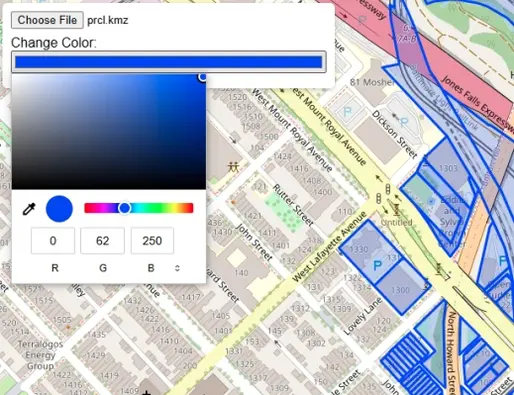
Click the colour swatch next to "Feature colour" in the toolbar. A colour picker will appear — choose any colour and all features update instantly.
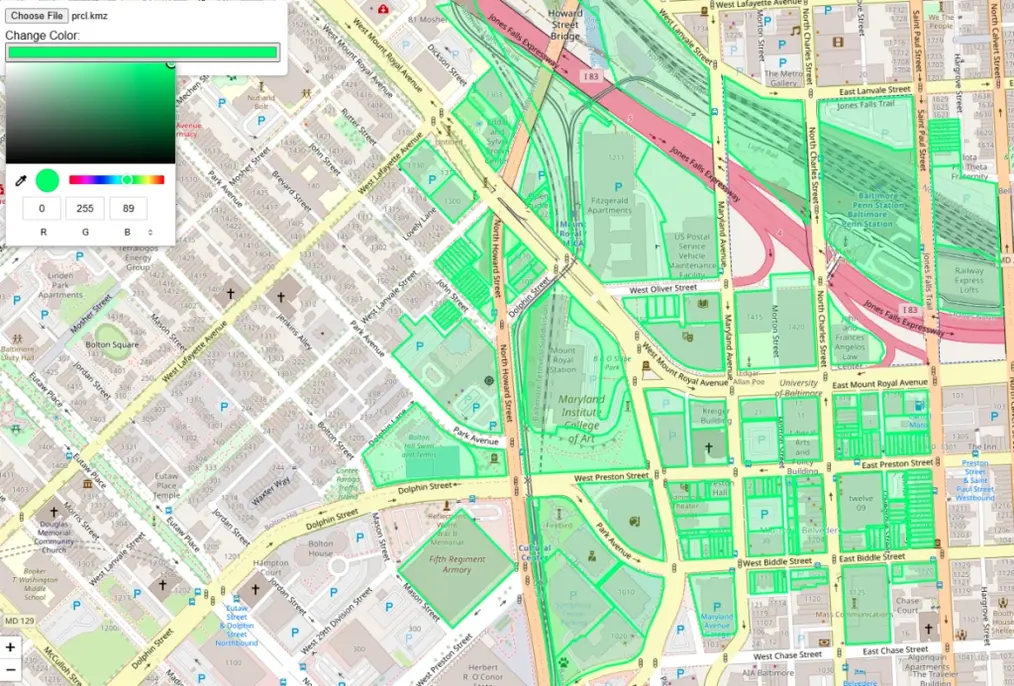
The map immediately reflects your chosen colour across all rendered features — useful for distinguishing layers when comparing datasets.
Use the Street / Satellite / Terrain buttons to change the background map. Satellite view is useful for identifying real-world context behind your KML data.
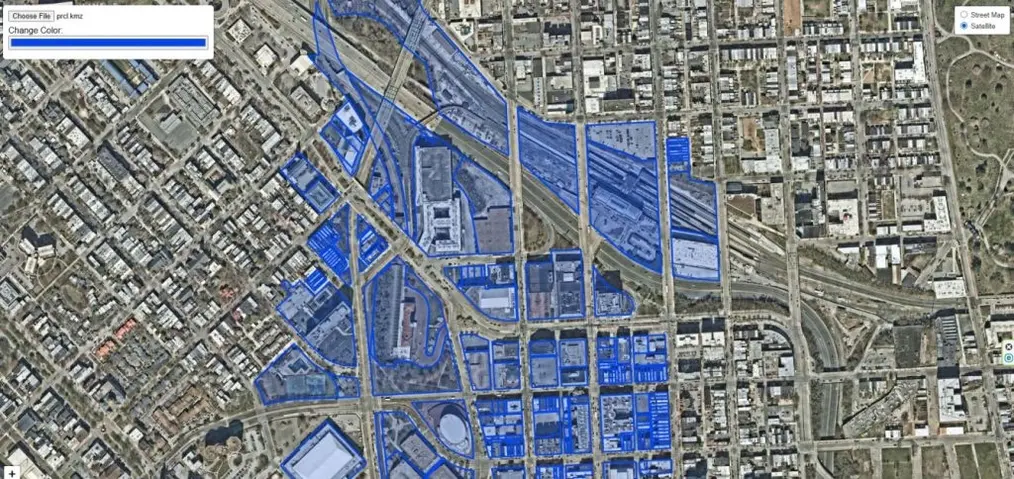
Satellite imagery helps verify feature locations against real-world imagery; Terrain shows relief for elevation-related datasets.
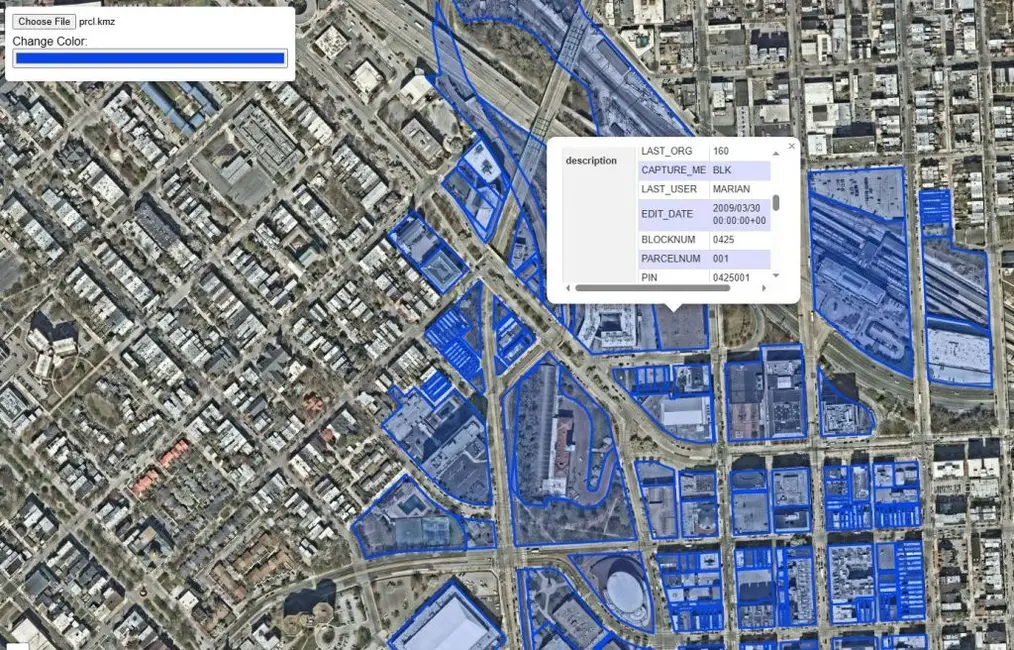
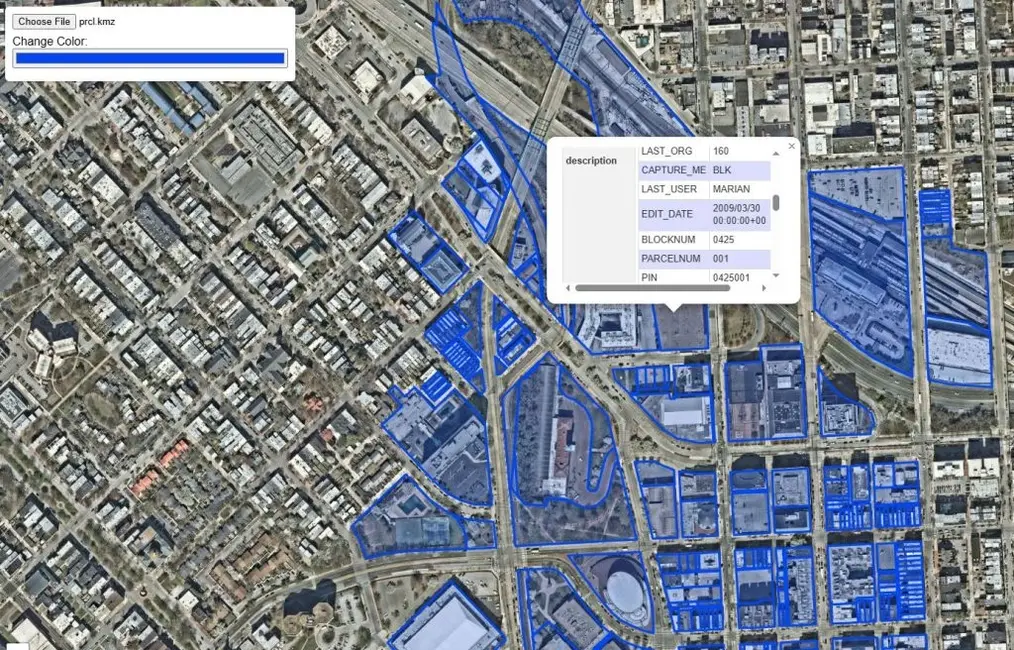
Click any point, line, or polygon on the map. A popup window opens showing the feature name, description, and all attribute data stored in the KML file.
Key Differences Between KML and KMZ Files
Although KML and KMZ files are closely related, they serve slightly different purposes in how geographic data is stored and shared.
| Feature | KML File | KMZ File |
|---|---|---|
| Full Name | Keyhole Markup Language | Keyhole Markup Zipped |
| Extension | .kml | .kmz |
| Format | Plain text (XML) | Compressed (ZIP) |
| Contents | Geographic data — placemarks, paths, polygons, styles | KML file(s) plus linked images, icons, and overlays |
| File Size | Larger — uncompressed | Smaller — ideal for sharing |
| Editable | Yes — open in any text editor | Must unzip first to edit |
| Best Use | Simple, lightweight maps or data sharing | Complete map packages with multiple resources |
A Brief History of the KML File Format
KML was originally developed by Keyhole Inc. in the early 2000s for their 3D Earth visualisation software, Keyhole Earth Viewer. In 2004, Google acquired Keyhole Inc. and rebranded the software as Google Earth, making KML the standard format for sharing geographic information such as placemarks, paths, and polygons. In 2008 the Open Geospatial Consortium (OGC) officially adopted KML as an international standard, ensuring compatibility across multiple GIS and mapping platforms. Today, KML and KMZ remain popular formats for sharing and visualising geospatial data across the web, mobile apps, and desktop mapping software.
Who Can Benefit from This Tool?
Understanding the KML Data Model
KML is valid XML — open any .kml file in a text editor and you will find a structured hierarchy of elements. Understanding this structure helps you know what to expect when a file loads in the viewer.
At the top level is the <kml> root element, usually containing a <Document> or <Folder> that organises content into logical groups. Individual geographic features are defined as <Placemark> elements — each contains exactly one geometry type:
<Point>— a single coordinate pair, rendered as a marker on the map<LineString>— an ordered sequence of coordinates forming a path or route<LinearRing>— a closed loop used as the boundary of a polygon<Polygon>— an area defined by an outer boundary and optional inner holes<MultiGeometry>— a container for multiple geometry types within one Placemark
Attribute data — the equivalent of columns in a spreadsheet — is stored in <ExtendedData> blocks inside each Placemark, as key-value pairs. The click-to-inspect popup in this viewer reads and displays all ExtendedData entries stored in each feature.
Visual styling (stroke colour, fill colour, line width, point icon) is defined in <Style> and <StyleMap> elements embedded in the Document or referenced externally. This viewer applies a uniform colour override via the colour picker — useful when a received KML has very faint or conflicting styles that are hard to see against the basemap.
Where You Encounter KML Files in the Real World
KML vs GeoJSON — When to Use Each
KML and GeoJSON are both widely used for sharing geographic data on the web, but they serve different purposes. KML is self-describing: it bundles geometry, attributes, and visual styling in a single file, making it the natural choice for sharing a finished, styled map with non-technical recipients. GeoJSON is a lean JSON format that carries only geometry and attributes — styling is left to the rendering application. It is smaller, natively understood by browsers, and rendered automatically by GitHub when committed to a repository.
For web development and data pipelines, GeoJSON is almost always preferable. For sharing a visually styled map with someone who has Google Earth, KML is the better choice. The Export as GeoJSON button in this viewer makes it trivial to convert a KML file to GeoJSON in one step — no desktop software needed.
Frequently Asked Questions
Open Source & Credits
- KML parsing: @tmcw/togeojson — MIT licence
- KMZ extraction: JSZip — MIT licence
- Map tiles: CARTO, OpenStreetMap, Esri
- Map library: Leaflet JS — open-source interactive mapping