Free Shapefile Viewer Online — SHP Reader & Map

Upload an ESRI Shapefile (.zip bundle or .shp) to view all geometries on an interactive map, explore the full attribute table, search and filter features, and export as GeoJSON. All processing happens in your browser — your file is never uploaded to a server.

Loading map…
Privacy
100% client-side — your shapefile never leaves your browser
Attribute Table
Search, filter, paginate, and zoom to any feature from the table
Export
Download the loaded shapefile as a GeoJSON file instantly
Rate this tool:

View ESRI Shapefiles on an Interactive Map — Free & Online

For decades, the ESRI Shapefile has been the workhorse of geospatial data. From urban planning and environmental science to journalism and logistics, this format — bundling geometry in a .shp file, attributes in a .dbf, and a supporting cast of .shx and .prj — has delivered countless maps. But there was always a catch: to view a shapefile, you needed heavy desktop software. QGIS, ArcGIS, or MapInfo. Licences, installations, steep learning curves.

Not anymore. This free online Shapefile viewer does exactly what it promises: upload a shapefile ZIP bundle or individual .shp file, and within milliseconds all geometries — points, lines, and polygons — render on an interactive Leaflet map. The entire parsing happens inside your browser using the open-source shpjs library. Sensitive parcel data, confidential environmental surveys, or proprietary planning boundaries never leave your computer. Drag, drop, see the map.

Key Features

  • ZIP Bundle Support — upload a .zip containing SHP + DBF + PRJ + SHX for full geometry and attribute loading
  • Individual SHP — upload just a .shp file to see the geometry (without attributes)
  • Interactive Map — polygons, lines, and points rendered with distinct colours; Leaflet basemap with fallback chain
  • Hover Highlight — hovering any feature (on map or in table) highlights it in amber
  • Click to Inspect — click any map feature to open a popup showing all its attributes
  • Attribute Table — paginated (50 rows/page) table with all DBF field values
  • Search & Filter — type in the search box to filter rows across all attribute fields simultaneously
  • Zoom to Feature — click any table row or the ⌖ button to zoom the map to that feature and open its popup
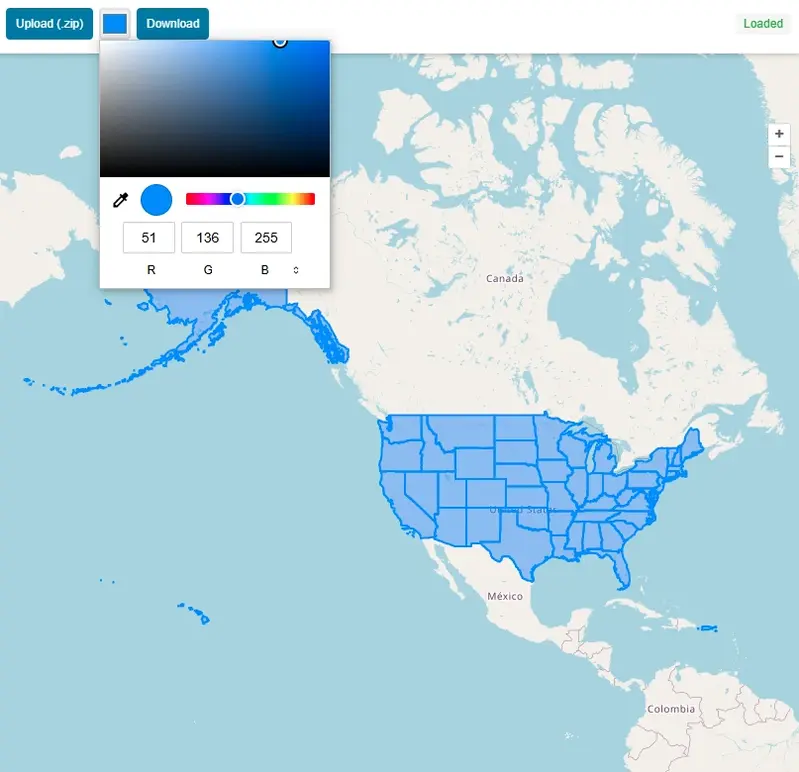
  • Fill Opacity Slider — adjust polygon transparency on the fly
  • Export as GeoJSON — download the entire loaded dataset as a .geojson file
  • Basemap Switcher — Street, Satellite (Esri), and Terrain map styles
  • Drag & Drop — drag a file directly onto the map to load it

How to Use the Shapefile Viewer — Step by Step

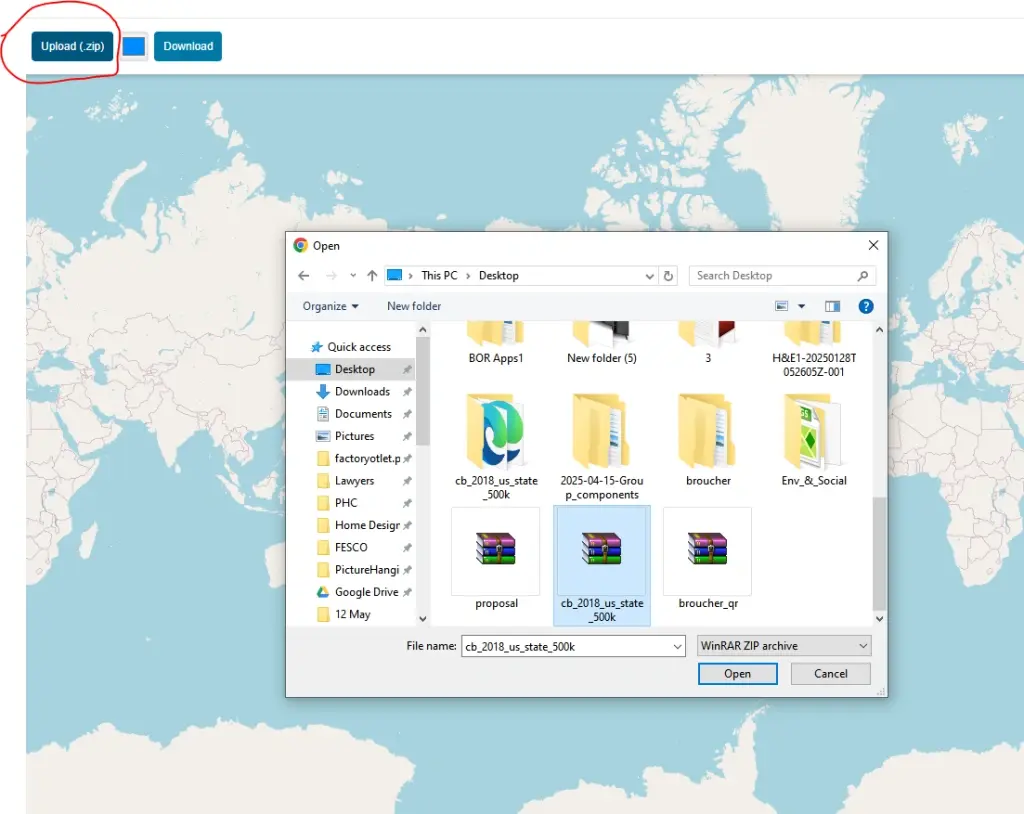
1Upload your Shapefile

Click "Upload SHP / ZIP" or drag a file onto the map. For full attribute data, upload a .zip bundle containing the .shp, .dbf, and .prj files.
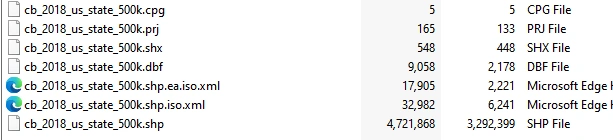
Upload your Shapefile
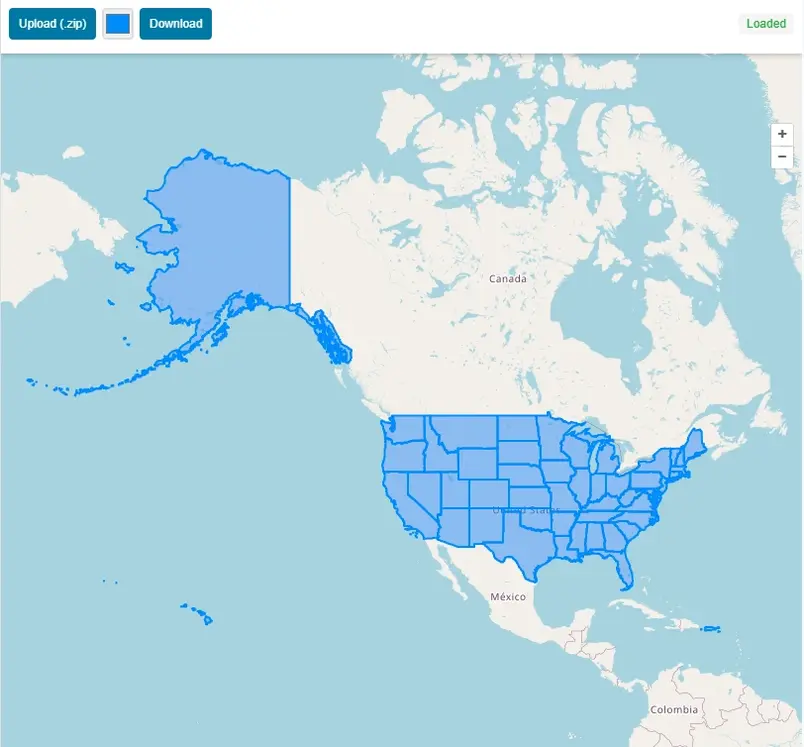
2Explore features on the map

All geometries are rendered immediately. The map fits to the extent of your data. Pan, zoom, and switch between Street, Satellite, and Terrain basemaps.
Explore features on the map
3Click a feature to inspect attributes

Click any polygon, line, or point on the map to open a popup showing all its DBF attribute values. The corresponding row is highlighted in the attribute table.
Click a feature to inspect attributes
4Search and filter the attribute table

Type in the search box above the table to filter rows. The filter searches across all attribute fields simultaneously — useful for large datasets.
Search and filter the attribute table
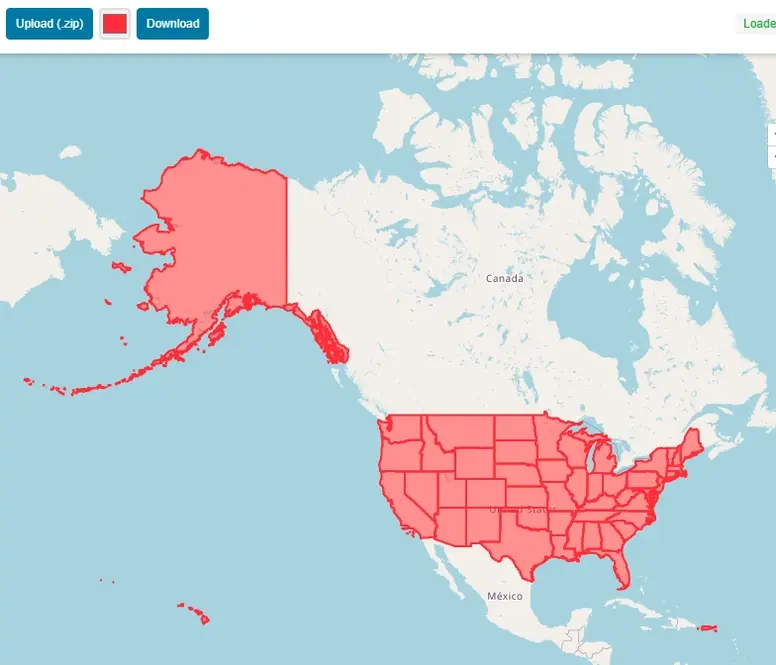
5Zoom to any feature from the table

Click any row in the attribute table (or the ⌖ button) to zoom the map to that specific feature and open its attribute popup.
Zoom to any feature from the table
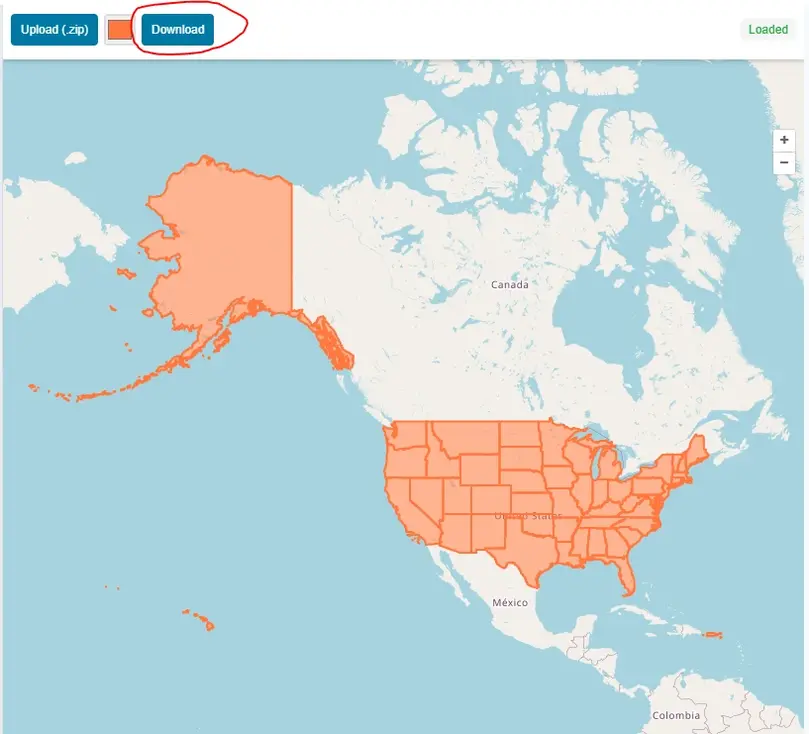
6Export as GeoJSON

Click the "GeoJSON" button in the toolbar to download the entire loaded shapefile as a .geojson file — ready to use in QGIS, Mapbox, or any GIS platform.
Export as GeoJSON

What Is an ESRI Shapefile?

The Shapefile is a widely used geospatial vector data format developed by ESRI. A complete shapefile is actually a collection of files: .shp (geometry), .dbf (attribute data in dBase format), .shx (spatial index), and optionally .prj (coordinate reference system). Most GIS software — including QGIS, ArcGIS, Google Earth Pro, and MapInfo — can import and export shapefiles. Government agencies, research institutions, and data providers regularly publish datasets in shapefile format.

For this viewer, upload the full ZIP bundle (all component files zipped together) for the richest experience — geometry on the map plus the complete attribute table. Uploading just a .shp file will render the geometry, but without the .dbf you will not see attribute data in the popups or table.

Who Can Benefit from This Tool?

GIS AnalystsQuickly preview a shapefile before opening it in desktop GIS software.
Urban PlannersInspect zoning, parcel, or boundary datasets without needing QGIS or ArcGIS.
Environmental ScientistsView habitat, watershed, or land-cover shapefiles on a basemap instantly.
DevelopersValidate that a shapefile contains the expected geometry and attributes before processing.
Journalists & ResearchersExplore open government datasets published in shapefile format.
StudentsLearn GIS concepts by uploading and inspecting real shapefile datasets.

More Than a Viewer: Built for Real Work

The attribute table loads below the map, paginated at 50 rows per page. A search box filters across all fields simultaneously — essential when hunting for a specific feature ID, name, or code in a large dataset. Hover over any table row and the corresponding geometry glows amber on the map. Click a polygon or line on the map and a popup reveals every attribute from the .dbf file. A fill opacity slider lets you adjust polygon transparency on the fly — useful when overlaying data on satellite imagery — and the zoom-to-feature button takes you directly to any geometry without manual panning.

The Export as GeoJSON button is a quiet but powerful addition. Within seconds, your entire shapefile converts to modern GeoJSON — ready to drop into Mapbox, upload to GitHub for automatic rendering, or import into any web mapping library or GIS platform.

Known Limitations

The viewer works best with shapefiles in WGS84 (EPSG:4326), as Leaflet maps expect geographic coordinates. Files in projected coordinate systems such as UTM may display incorrectly unless reprojected first in QGIS or a similar tool. Very large files — tens of thousands of complex polygons — can push browser memory limits and render slowly; this is a browser constraint, not a tool restriction. For the vast majority of everyday shapefiles the tool handles them gracefully.

Geospatial Tools No Longer Need to Be Intimidating

For decades, the barrier to working with spatial data was software cost and complexity — licences, installations, and steep learning curves. That wall is crumbling. Free, browser-based viewers are democratising access to GIS data. You no longer need to be a GIS professional to open and understand a shapefile. So the next time someone sends you a .zip full of mysterious .shp and .dbf files, do not install anything. Drag it onto this map and start exploring. The future of GIS is not on your hard drive — it is in your browser tab.

Frequently Asked Questions

Is my shapefile uploaded to a server?
No. The entire shapefile is parsed directly in your browser using the open-source shpjs library. Your file never leaves your device and is never transmitted to any external server — not even temporarily.
What files do I need to include in the ZIP bundle?
Include at least .shp, .dbf, and .shx — all using the same base name (e.g. parcels.shp, parcels.dbf, parcels.shx). Adding the .prj file is strongly recommended: without it the viewer cannot read the coordinate reference system and the geometry may render in the wrong location. Zip all four files together and upload the resulting .zip.
Why is my shapefile displaying in the wrong location on the map?
This almost always means the shapefile is in a projected coordinate system (such as UTM, British National Grid, or a local state plane) rather than geographic WGS84 (EPSG:4326). Leaflet maps use geographic coordinates, so projected data will appear in the wrong place. Reproject the shapefile to EPSG:4326 in QGIS (Layer → Export → Save Features As → CRS: EPSG:4326) before uploading.
What geometry types does the viewer support?
The viewer supports all standard shapefile geometry types: Point, MultiPoint, Polyline (LineString / MultiLineString), Polygon, and MultiPolygon. Points appear as circle markers, lines as coloured polylines, and polygons as filled shapes with a configurable opacity.
Why is there no attribute data in the popup or table?
Attribute data comes from the .dbf file. If you uploaded only a .shp file (without the .dbf), the geometry will render on the map but the attribute table and feature popups will be empty. Re-upload a ZIP bundle that includes the matching .dbf file to see all field values.
How do I search for a specific feature in the attribute table?
Type any value into the search box above the attribute table. The filter runs across all DBF fields simultaneously — so you can search by name, ID, code, or any other attribute column. Matching rows are shown instantly; click any row or the ⌖ zoom button to jump the map to that feature.
How many features can the viewer handle?
The viewer handles thousands of features comfortably. Very large files — tens of thousands of complex polygons — can push browser memory limits and may render slowly or cause the tab to become unresponsive. This is a browser constraint rather than a tool restriction. For very large datasets, consider simplifying geometries in QGIS before uploading.
Can I export the shapefile as GeoJSON?
Yes. Once your shapefile is loaded, click the GeoJSON button in the toolbar to download the entire dataset as a .geojson file. The export includes all geometries and all attribute fields from the .dbf. GeoJSON is widely supported by Mapbox, GitHub (which renders it automatically), QGIS, and all modern web mapping libraries.
Can I view shapefiles exported from QGIS or ArcGIS?
Yes. Any standard ESRI Shapefile — regardless of which software created it — is supported, including exports from QGIS, ArcGIS, ArcGIS Pro, MapInfo, FME, PostGIS, and government open data portals. As long as the file follows the shapefile specification and is in WGS84, it will load correctly.
Can I view multiple shapefiles at the same time?
Currently the viewer loads one shapefile at a time. Uploading a new file replaces the existing layer on the map. For multi-layer workflows, QGIS (free and open-source) is the recommended desktop tool.
What is the maximum file size a shapefile can store?
The shapefile format has a hard technical limit of 2 GB per component file (.shp and .dbf separately). In practice, files over 100–200 MB are difficult to work with in any browser-based tool due to memory constraints. For very large datasets, modern formats like GeoPackage (.gpkg) or GeoParquet are more efficient alternatives.
What is the difference between a shapefile and GeoJSON?
A shapefile is a multi-file binary format (at least .shp + .dbf + .shx) developed by ESRI in the early 1990s. GeoJSON is a single plain-text JSON file defined by an open web standard. GeoJSON is easier to share, natively supported by browsers and GitHub, and requires no special libraries to read. Shapefiles remain dominant in desktop GIS workflows and government data publishing because of decades of tooling built around them.
What is the difference between a shapefile and a GeoPackage?
A GeoPackage (.gpkg) is a modern, open standard based on SQLite — a single file that can store multiple layers, raster tiles, and large datasets far more efficiently than a shapefile. It has no 2 GB file size limit, supports longer field names (shapefiles cap field names at 10 characters), and handles Unicode text correctly. GeoPackage is the OGC-recommended replacement for shapefiles in new workflows.
Why is the .prj file missing from my shapefile, and what can I do?
The .prj file is optional in the shapefile specification, so some software omits it on export. Without it, the viewer cannot determine the coordinate reference system and the data may appear in the wrong location. If you know the CRS (e.g. EPSG:27700 for British National Grid), you can add the correct .prj content using QGIS: open the layer, go to Layer Properties → Source → set the CRS manually, then re-export with the .prj included.
What does EPSG:4326 mean, and why does it matter?
EPSG:4326 is the code for the WGS84 geographic coordinate system — the same system used by GPS and most web maps. Coordinates are expressed as decimal degrees of latitude and longitude. It matters for browser-based viewers because Leaflet and other web mapping libraries expect WGS84 input. Shapefiles in other coordinate systems (EPSG:27700, EPSG:3857, UTM zones, etc.) must be reprojected to EPSG:4326 before they will display correctly on a web map.
How do I open a shapefile in Google Earth?
Google Earth Pro (free desktop app) can import shapefiles directly via File → Import. Google Earth on the web does not support shapefile import natively. The common workaround is to convert the shapefile to KML using QGIS (Layer → Export → Save Features As → KML), then open the .kml file in Google Earth on the web or the desktop app.
What free software can open and edit shapefiles?
QGIS is the leading free and open-source desktop GIS application and fully supports opening, editing, styling, and exporting shapefiles on Windows, macOS, and Linux. Other free options include gvSIG, GRASS GIS, and Google Earth Pro (view only). For quick browser-based inspection without installing anything, this viewer handles the most common preview and export tasks directly in the browser.

Open Source & Credits

Free Shapefile Viewer Online — SHP Reader & Map | Maplity