Find the Area of Any Location by Drawing on the Map
Do you need to know the area of a plot of land, an agricultural field, a rooftop, or a site boundary? This free map area calculator lets you draw any polygon on an interactive map and instantly returns the area in square feet, square metres, square yards, square kilometres, square miles, acres, and hectares — all at once.
No GIS software, no spreadsheets. Just draw on the map and read the number.
Who Can Use This Tool
Key Features
- Address & Postcode Search — find any location worldwide via the search bar
- GPS Location — one click to zoom to your current position
- Click-to-Draw Polygon — click vertices, double-click to finish
- Live Preview Line — ghost line follows your cursor as you draw
- Colour Picker — choose polygon fill colour for each shape
- Multiple Polygons — add as many as needed; cumulative total shown
- 8 Area Units — acres, ha, km², m², ft², yd², mi² — all at once
- Click Popup — click any polygon to see its individual area breakdown
- Basemap Switcher — Street, Satellite, and Terrain base layers
- GeoJSON Export — download all polygons for use in QGIS, ArcGIS, etc.
- Fullscreen Mode — expand for a larger drawing workspace
How to Use — Step by Step
Enter an address, place name, or postal code in the search bar and click Search, or click the 📍 button to zoom to your current GPS location. The map pans and zooms automatically.

Click the colour swatch in the toolbar to pick a colour for your polygon. This is especially useful when drawing multiple polygons to tell them apart at a glance.
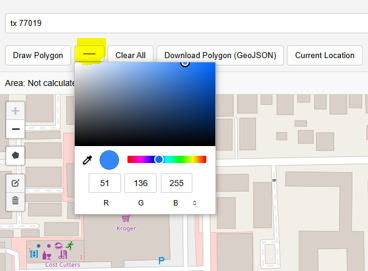
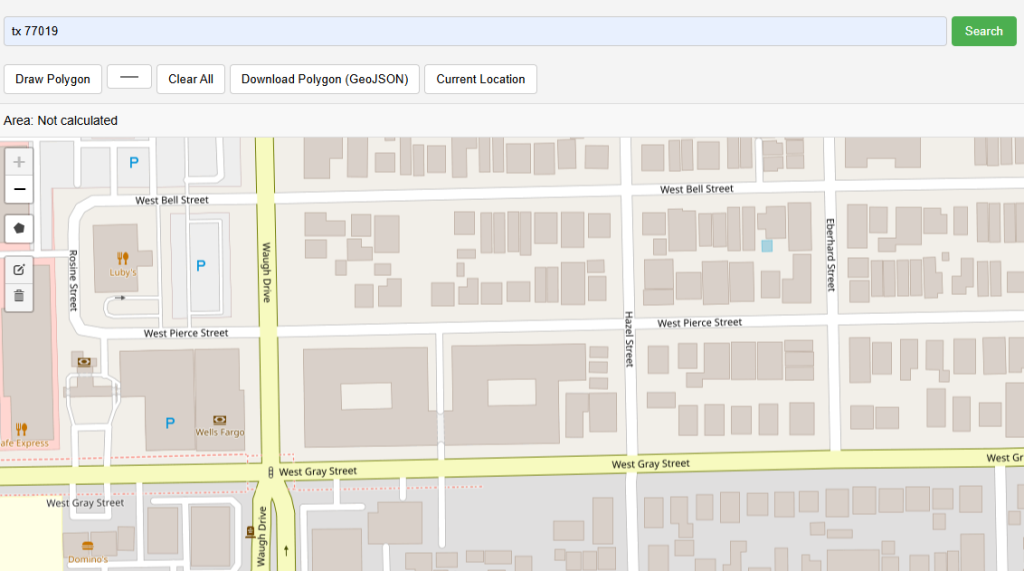
Press the green "Draw Polygon" button. The cursor changes to a crosshair. Click on the map to place the first vertex of your polygon.
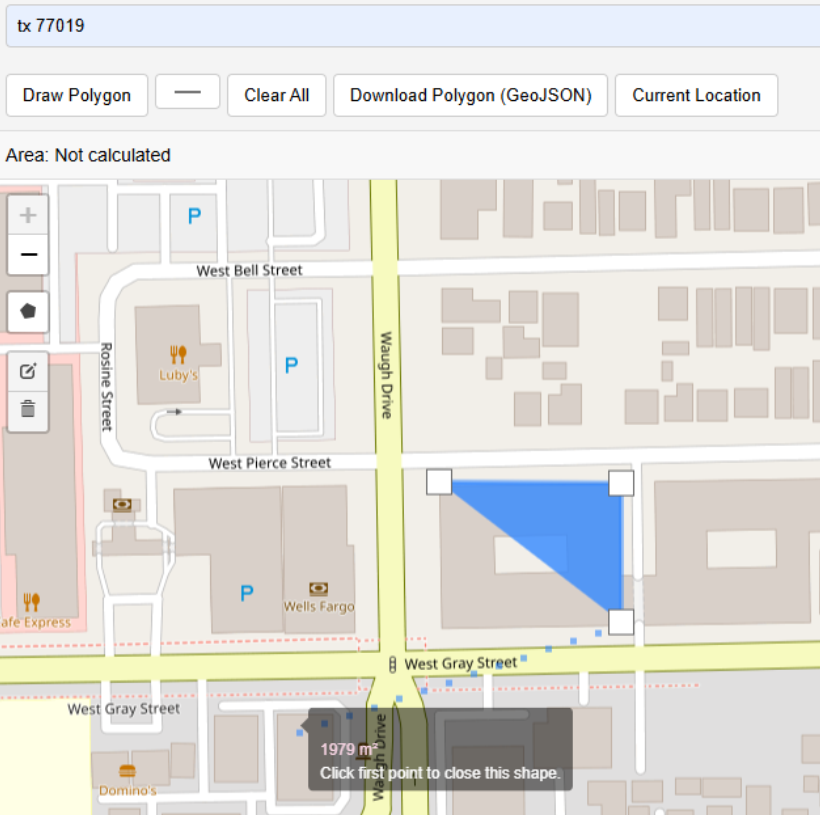
Click each corner of the area you want to measure. A dashed line previews the next edge in real time. Keep clicking to trace the full boundary of your field, rooftop, or site.
Double-click to finish drawing and close the polygon. The shape is filled and the area appears instantly in the stats bar — in acres, ha, km², m², ft², yd², and mi².
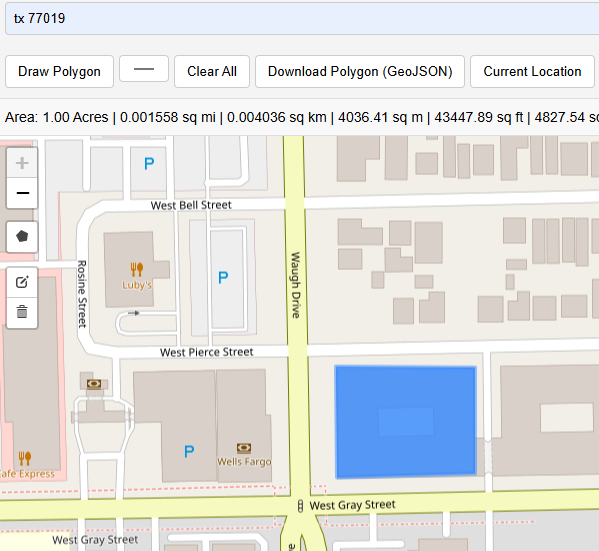
The dark stats bar shows the total area in every unit simultaneously. Click on the polygon itself to see a popup with all measurements. Add more polygons — the total updates automatically.
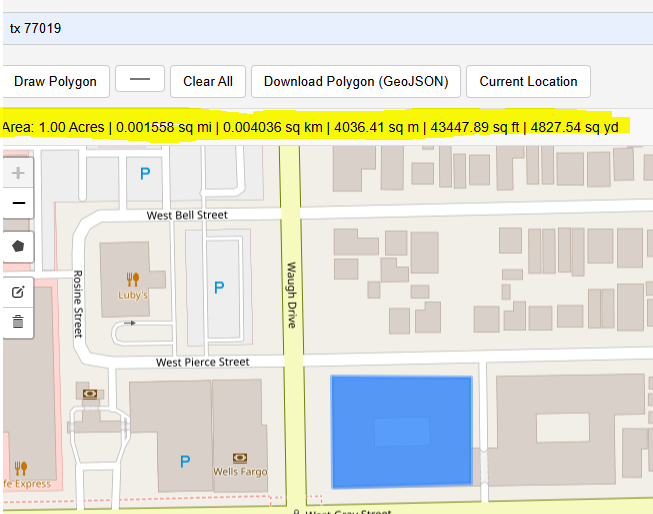
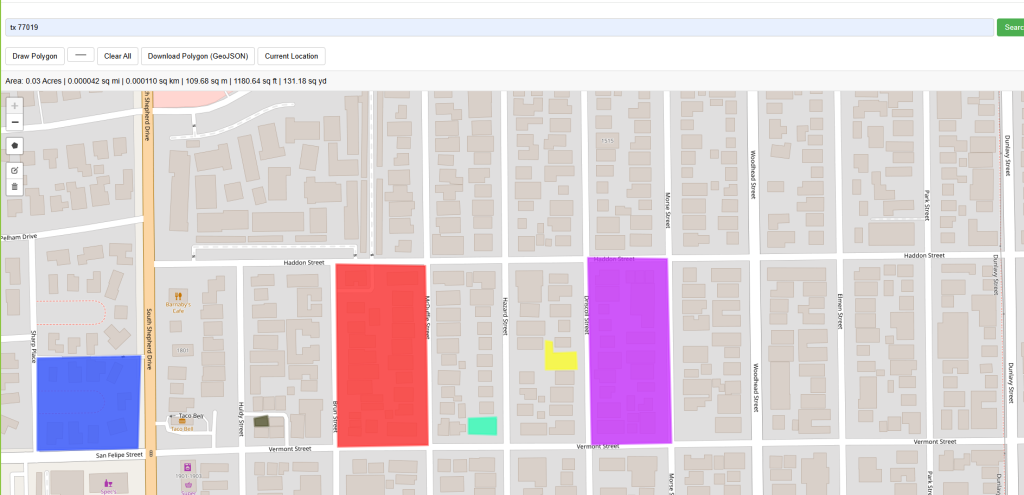
Draw as many polygons as you need in different colours. The stats bar always shows the cumulative total area across all polygons on the map.
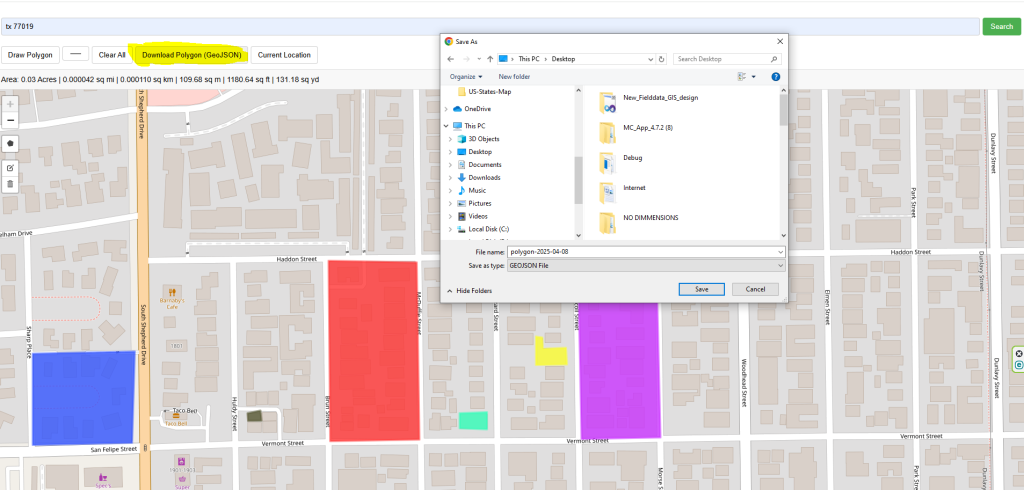
Click "GeoJSON" to download all polygons as a standard GeoJSON file. Open it in QGIS, ArcGIS, Google Earth, Mapbox, or any GIS software for further analysis.
Area Unit Conversion Reference
| Unit | Symbol | Conversion from m² | Common Use |
|---|---|---|---|
| Square metre | m² | × 1 | Construction, engineering |
| Square kilometre | km² | ÷ 1,000,000 | Large territories, countries |
| Hectare | ha | ÷ 10,000 | Agriculture, forestry |
| Acre | ac | × 0.000247105 | US/UK real estate, farming |
| Square foot | ft² | × 10.7639 | US real estate, floor area |
| Square yard | yd² | × 1.19599 | Carpeting, fabric |
| Square mile | mi² | ÷ 2,589,988 | US/UK geography |
How the Area Is Calculated
This tool uses the geodesic (spherical excess) formula rather than a simple flat-Earth Euclidean calculation. Because the Earth is a sphere, a polygon drawn on a map has slightly different area depending on its latitude — the same polygon near the equator covers a different physical area than the same pixel-polygon near the poles.
The formula accounts for this by using the WGS84 Earth radius (6,378,137 m) and computing the integral of latitude contributions along each edge. This is the same algorithm used by Leaflet's L.GeometryUtil.geodesicArea() and major GIS platforms. For areas up to ~500 km², the error relative to a full ellipsoidal calculation is less than 0.1%.
Frequently Asked Questions
Open Source & Credits
- Map library: Leaflet — open-source interactive maps
- Geocoding: Nominatim / OpenStreetMap — address search
- Map tiles: CARTO Light, OpenStreetMap, Esri (satellite/terrain)